
Uncategorized
Digital Billboard Truck: Boost Your Campaign with Mobile Ads
Picture this: you take the flash and spectacle of a Times Square billboard, slap it on the back of a truck, and send it wherever

Properly setting up an LED display starts way before you ever plug anything in.Properly setting up an LED display starts way before you ever plug anything in. Success is really born from thorough planning, accurate measurements, and a crystal-clear understanding of what you want to achieve. This initial blueprint is what prevents costly mistakes and ensures your final installation is safe, effective, and looks absolutely incredible.
Before you even think about unboxing a single panel, the most important work happens with a notepad, a measuring tape, and a healthy dose of foresight. This planning phase is your roadmap. It guides every single decision, from which product to buy to that final flick of the switch.
Trust me, skipping these foundational steps is the number one reason I see installations fail or just fall flat. You wouldn't build a house without a blueprint, right? Well, setting up a professional-grade LED display is no different, whether it's a high-impact outdoor sign for a store or an immersive video wall in a corporate lobby.
First things first: you have to get out there and analyze the installation environment. For an outdoor sign, this means getting a good look at the structural integrity of the facade it's going on. Can the wall actually support the weight? Are there obstructions like windows, pipes, or existing fixtures in the way? You also have to think about sun exposure and potential glare, which will dictate how bright your display needs to be (we measure this in nits).
If you're working indoors on a video wall, the focus shifts. You'll need to check for wall flatness—something that trips up a lot of people—as well as ceiling height and the ambient light conditions. A lobby flooded with natural light from huge windows needs a much brighter display than a dimly lit control room. Mapping the precise location ensures the screen is at the perfect viewing height and angle for your audience.
Key Takeaway: A detailed site assessment isn't just about taking measurements. It's about anticipating challenges—from uneven walls to the way the sun hits the building in the afternoon—and solving them on paper before they become expensive, on-site headaches.
This is also the perfect time to get creative. If you're looking for a unique visual pop, exploring options for custom LED neon signs can add a distinct flair to your space and should be part of this initial brainstorming.
One of the most common—and frustrating—setup headaches is realizing you don't have power or data connections where you need them. During your site assessment, physically trace the path for both. Where's the nearest electrical panel? Can you run Ethernet or fiber optic cables from your control source to the display location without it looking like a mess?
Planning these routes in advance helps you avoid ugly, exposed conduit or, worse, having to tear open walls you didn't plan on touching. It also helps you figure out exactly how much cable you'll need, saving you from those last-minute, frantic trips to the hardware store.
Pixel pitch—the distance between the centers of individual LEDs—is a massive decision that directly impacts both the clarity of your image and the cost of your project. The rule of thumb is simple: the closer your audience is to the screen, the smaller (or "finer") the pixel pitch needs to be.
A fine pixel pitch looks incredible up close but costs more. A larger pitch is perfect for viewing from a distance and is much more budget-friendly. It's all about finding the sweet spot for your specific application.
Use this quick comparison to select the right LED solution for your needs, focusing on application, viewing distance, and key features.
| Application Type | Ideal Pixel Pitch (P-Value) | Optimal Viewing Distance | Key Feature |
|---|---|---|---|
| Outdoor Billboard | P8 – P16 | 25+ feet (8+ meters) | High brightness & weather resistance |
| Retail Storefront Sign | P4 – P6 | 12-20 feet (4-6 meters) | Excellent visibility from the sidewalk |
| Corporate Lobby Wall | P2.5 – P4 | 8-12 feet (2.5-4 meters) | Sharp resolution for mixed content |
| Home Theater/Control Room | P1.2 – P2.5 | 4-8 feet (1.2-2.5 meters) | Flawless, cinema-quality detail |
This table should give you a solid starting point. Understanding the relationship between pixel pitch and viewing distance is essential for budgeting. To learn more about how these factors influence project expenses, check out our detailed guide on the factors affecting outdoor LED sign cost.
LED technology has completely changed the game for business visibility. The global LED lighting market was valued at an incredible USD 99.47 billion in 2025 and is projected to skyrocket to USD 260.71 billion by 2035. For businesses, this means installing a high-impact outdoor LED sign isn't just an expense—it's a serious investment in boosting storefront traffic and standing out from the crowd.
Alright, with the plans locked in, it’s time to get your hands dirty. This is the moment where blueprints become reality, and you start physically mounting and assembling your LED display. The exact process will shift depending on what you’re building, but the fundamentals—safety, precision, and a healthy dose of patience—are always the same.
Let's walk through three common scenarios. Each one has its own set of challenges and needs a specific approach to get that professional, built-to-last finish.
Bolting a big outdoor sign to a building is all about structural integrity. You’re not just hanging a picture frame; this is a heavy piece of gear that has to battle wind, rain, and whatever else nature throws at it. You'll need some serious hardware: a hammer drill, masonry bits, and industrial-grade anchor bolts or lag screws that are right for your building's facade, whether it's brick, concrete, or steel.
First things first, use your template to mark the drill holes. Be obsessive about this. A perfectly level mounting bracket is non-negotiable—even a tiny slant will stick out like a sore thumb once the sign is up. When you're drilling into masonry, expect a lot of dust, and please, wear your safety glasses.
Once the main frame is rock-solid, you can start lifting and locking the individual LED cabinets into place. This is usually a two-person job, at a minimum, and might even require a lift depending on how big this thing is. Pay close attention to the weather seals between the cabinets. Creating a waterproof barrier is absolutely critical for protecting the electronics inside from moisture.
Building an indoor video wall is a game of millimeters. The whole point is to create a single, flawless digital canvas. If your panels are even slightly out of alignment, the illusion is shattered, and you'll see those distracting seams. Here, your tools are all about finesse: a good laser level, the precision alignment tools that hopefully came with your panels, and torque screwdrivers.
It all starts with installing a perfectly flat and plumb mounting frame. Think of this frame as the skeleton for your video wall. Getting it right is probably the most important step for a seamless look. After the frame is securely on the wall, you can begin attaching the LED cabinets, usually starting from the bottom center and working your way out.
Pro Tip: Treat every LED module like it’s made of glass. Always handle them by the edges to avoid touching the tiny LED diodes on the front. One dead pixel from a stray fingerprint or a bump can create a glaring black spot that will haunt you forever. Keep a soft, clean cloth handy to wipe away any smudges.
As you connect each cabinet, use the built-in locks and alignment pins to pull them into a tight, flush fit. This painstaking work is what prevents those gaps and makes an installation look truly high-end. If you’re building a massive, high-res display, it really pays to use products engineered for this. For instance, looking into the features of 2.5mm LED video wall product lines shows you how modern cabinets are designed with flawless, easy assembly in mind.
Putting together a premium home theater with LED panels is a mix of both worlds. You don't have to worry about the weather, but getting that cinematic perfection means you have to seriously consider structural loads and airflow.
A big LED screen can be surprisingly heavy. You'll often need to reinforce the wall with extra studs or a dedicated mounting structure to handle the weight. It's a crucial step that prevents the display from sagging over time and, more importantly, keeps it from falling off the wall.
Ventilation is the other big thing people tend to forget. LED panels create heat, and if that heat has nowhere to go, it can shorten their lifespan and hurt performance.
Nailing the weight distribution, ensuring the wall is sound, and providing plenty of airflow are the three pillars of a great home theater install. Taking the time to get these details right means your investment won't just look incredible on day one—it'll last for years.
Once your LED display is physically mounted, it's time to bring it to life. Think of the wiring and power connections as the circulatory system for your screen. Getting this part right isn't just about flipping a switch and seeing pretty lights—it's about ensuring safety, stability, and a long, healthy life for your investment.
A solid electrical setup is your best defense against common headaches like flickering, weird color shifts, and even permanent damage from power surges. It’s a meticulous process, but one that pays off big time in performance and peace of mind.
Before you even think about connecting a wire, you need to know exactly how much juice your display is going to pull. Honestly, this is one of the most critical calculations you'll make. Underpowering the system is a surefire way to get a dim display, and you'll burn out your power supplies in no time.
To figure out your total power requirement, you just need two numbers:
Multiply those two figures, and you have your total maximum wattage. For example, a 10sqm outdoor sign built from 50 modules, each rated at 150W, would demand a total of 7,500W (50 modules x 150W). With that number, you can figure out how many power supply units (PSUs) you need and make sure your electrical circuit can actually handle that kind of load.
A non-negotiable rule of thumb we live by: never run your power supplies at more than 80% of their rated capacity. This buffer zone prevents them from overheating and dramatically extends their lifespan. So, if you need 1000W, you should be using a 1200W power supply or bigger.
Wiring isn't just about getting from Point A to Point B. It’s about creating a clean, logical, and efficient pathway for both power and data. The go-to method for connecting modules is "daisy-chaining," where one module links to the next one in a clean sequence.
Data cables—usually standard Ethernet cables—carry the video signal from your controller to the very first module. That module then passes the signal along to the next one, and so on down the line. Power cables follow a similar logic, distributing electricity from a single PSU to a small, manageable group of modules.
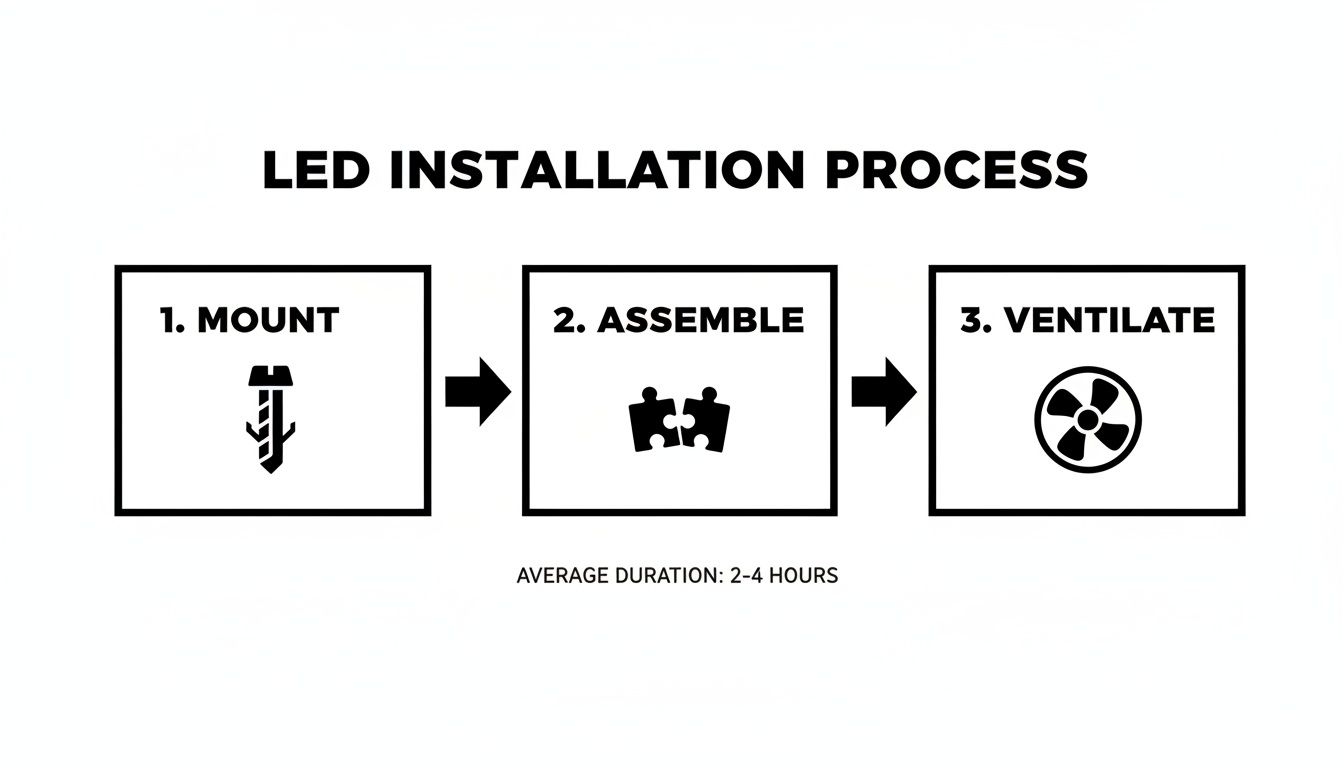
This simple flow—mount, assemble, ventilate—is the foundation you build on. You have to get these physical steps right before a single watt of power is applied. It prevents alignment or cooling issues that can turn the electrical setup into a nightmare.
High-power LEDs are the engine behind massive billboards and epic concert stages, a market that’s expected to jump from USD 4.23 billion in 2025 to USD 6.08 billion by 2036. To play in this space, power management is everything. Using top-tier, high-efficiency power supplies—like Meanwell 48V models with 90% efficiency—and pairing them with proper 20A fusing is absolutely critical for both performance and safety. As a bonus, when digital-out-of-home (DOOH) operators nail their power setups, they're also helping create a more sustainable industry. You can read more about the growth and impact of high-power LEDs here.
Proper grounding is your display's number one defense against electrical noise and the kind of catastrophic damage that a power surge can cause. A system that's ungrounded or poorly grounded is a sitting duck for static discharge and electrical faults, which can fry sensitive electronics in an instant.
Make sure the metal frame of your display and every single power supply unit are tied directly to a verified earth ground. This gives any excess electricity a safe path to dissipate, protecting your hardware. For any outdoor installation, this is non-negotiable and almost always required by local electrical codes. On big projects, we always recommend bringing in a licensed electrician to verify the grounding. It's a small investment to protect a much, much larger one.
You’ve built the body—your LED display is perfectly mounted and safely powered up. Now, it’s time to give it a brain. The controller and its software are where the magic really happens, turning a grid of dormant pixels into a vibrant, dynamic canvas.
This is the stage where you teach your hardware what to do. We'll get your video source connected, tell the screen its exact shape and size, and finally, start pushing some beautiful content to it. It might sound a bit technical, but modern systems have made this process surprisingly straightforward.
At the heart of your entire setup is the sending card or controller. Think of this device as a translator. It takes a standard video signal—like the HDMI output from a computer—and converts it into a special format the LED modules can understand. From there, it sends the data down a simple Ethernet cable to the first LED cabinet in the chain.
Getting it hooked up is usually a breeze:
That's the basic physical link. The real work happens inside the configuration software, which is typically a program like NovaLCT for NovaStar systems or LEDStudio for Linsn setups. If you're using a professional controller, the software is designed to work perfectly with your hardware. For example, high-end units like the Colorlight X100 Pro LED Sender come with robust software suites built for mission-critical applications.
With your controller connected and the software running, the very first task is telling it about the screen it’s controlling. You can't just plug it in and expect a perfect picture; the software needs to know the exact pixel dimensions—both the width and height—of your complete display.
This process is called screen mapping or screen configuration. You're essentially creating a digital blueprint of your physical layout, defining how many modules you've arranged horizontally and vertically. For instance, if you built a video wall with 10 modules across and 6 modules down, and each module has a 192×192 pixel resolution, you’d configure a total resolution of 1920×1152 pixels.
Key Insight: Getting the screen mapping right is absolutely fundamental. I can't tell you how many service calls come down to this one step. An incorrect configuration is the number one cause of issues like a stretched image, cropped content, or parts of the display showing a jumbled mess. Always double-check your module count and resolution before saving the settings to the controller.
Once the screen is correctly configured, you're ready for the fun part. How you send content can be as simple or as sophisticated as you need.
Before you start loading up your content, it’s worth noting that large-scale LED walls can be picky about video files. To ensure everything plays smoothly, you'll want to optimize video files for seamless display on LED walls to prevent stuttering, lag, or other playback headaches.
Even with a perfect plan, you might run into a snag or two. This quick reference table covers some of the most frequent issues I've seen in the field during the controller and software setup phase.
| Symptom | Potential Cause | Recommended Solution |
|---|---|---|
| No image on screen | Incorrect input source selected on the sending card. | Check the controller software or physical buttons to ensure the correct input (e.g., HDMI 1) is active. |
| Image is jumbled/scrambled | Screen mapping (resolution) is incorrect. | Double-check the total pixel width and height in your software to match your physical display. |
| Colors are wrong | Incorrect RCG or configuration file loaded. | Make sure you have the right configuration file for your specific batch of LED modules. |
| Flickering or lines on screen | A loose or faulty Ethernet cable between cabinets. | Reseat all data cables. If that fails, test with a new Ethernet cable. |
| Content is stretched or cropped | The resolution of your source content does not match the LED screen's resolution. | Adjust the content resolution or use the scaling features in your content software. |
This table doesn't cover everything, but it's a solid starting point for troubleshooting the most common hiccups you'll encounter when bringing a new screen to life.
You’ve made it. Your display is built, powered on, and talking to the controller. You're on the home stretch, but this last leg of the race is absolutely critical. This is where you separate a functional LED screen from a truly spectacular one.
Think of it like tuning a high-performance engine. Sure, it runs, but you haven't dialed it in for peak performance. Rushing through calibration is a rookie mistake that can make an otherwise professional install look amateurish, with distracting color shifts or dead pixels that draw the eye for all the wrong reasons.
Before you even touch the color settings, your first job is to give the display a full health check. Most control software comes with built-in diagnostic tools that are perfect for this. They let you cycle through solid colors—red, green, blue, and white—across the entire screen. Now you get to play detective.
This simple test is the best way to catch small issues that are easy to fix now but become a massive headache later. As the colors cycle, walk the entire length and width of the screen, keeping a sharp eye out for:
Jot down or snap a photo of any problem areas. A single dead pixel on a massive outdoor sign might be completely unnoticeable, but a cluster of them or a glitching module needs to be sorted out immediately.
With the hardware confirmed to be in good shape, it’s time to dial in the visuals. The goal here is uniformity. You need to ensure that your specific brand-logo blue looks like the exact same blue on every single panel, from corner to corner.
Brightness is not a "set it and forget it" feature. The right level depends entirely on the ambient light. An outdoor billboard needs to blast through direct sunlight, while a home theater screen set to that same level would be painfully bright in a dark room.
Pro Tip: A common mistake in indoor settings is cranking the brightness way too high. This doesn't just cause eye strain; it washes out colors and can actually shorten the lifespan of your LEDs. A good starting point is around 50% brightness, then adjust up or down to match the room's lighting.
Getting your white balance right is the secret to making all your other colors look accurate and natural. Color temperature, measured in Kelvin (K), is key here. Lower values like 3200K produce a warmer, yellowish-orange light, while higher values like 6500K create a cooler, more clinical blueish light.
The industry standard for most indoor video walls and digital signage is a neutral white point right around 6500K. A home theater, on the other hand, might be calibrated to a warmer tone to get that classic, film-like feel. Use your control software to display a pure white screen, then carefully tweak the red, green, and blue gain levels until you see a clean, neutral white with no color cast.
This level of precision is a major reason the industrial and commercial LED market was valued at an impressive USD 54.4 billion in 2024. For high-stakes applications like broadcast studios or mission-critical control rooms, achieving at least 95% coverage of the DCI-P3 color space is non-negotiable. You can learn more about the latest trends in commercial LED lighting to see where the industry is headed.
This final check ensures your investment doesn't just work—it performs flawlessly, delivering the stunning visual impact you planned from the very beginning.
Even the most carefully planned LED installation can throw you a curveball. After years in the field, we've seen just about everything. Here are some of the most common questions that pop up during setup, along with practical advice to keep your project on track.
Hands down, the most common—and most expensive—mistake is jumping the gun on purchasing a sign before doing a proper site survey and checking local regulations. It happens all the time. Someone gets excited about a big, bright display, only to find out their city's zoning laws have strict limits on size, brightness, or even animated content. That can lead to hefty fines or, even worse, a removal order.
Another classic error is cutting corners on weatherproofing. You might see an IP65 rating on the cabinet and think you're good to go, but that's only half the story. Every single cable gland, access panel, and seam needs to be perfectly sealed. We've seen countless displays fail prematurely because of water getting in through one tiny, poorly sealed connection. It's a preventable disaster.
Getting that flawless, single-canvas look from an indoor video wall isn't magic; it's a combination of precision mechanics, smart software calibration, and starting with the right gear.
The secret to a flawless video wall is treating it as a complete system. The physical build, the software tweaks, and the quality of the components all have to work in harmony. If you skimp on one area, the other two simply can't make up for it.
This is a big one. While many tech-savvy folks can handle assembling the LED modules and running the low-voltage data cables, we strongly recommend hiring a licensed electrician for all primary power connections. This isn't just a friendly suggestion—it’s about safety, compliance, and protecting your investment.
An electrician is there to make sure the circuit can actually handle the load your new display will draw. They'll install the right breakers and, most importantly, ensure everything is properly grounded. This is what protects your very expensive equipment from power surges and what keeps your installation compliant with local electrical codes.
Modern LED displays are built like tanks, but they aren't completely "set and forget." Think of it like owning a car; a little preventative care goes a long way.
For outdoor signs, you'll want to periodically clean the display face to get rid of the road grime and dirt that inevitably builds up and dulls the brightness. It's also a good idea to pop the hood every so often to make sure all the cooling fans are spinning and that the vents are clear of leaves or other debris.
Indoor video walls are a bit easier. The main thing is to ensure there’s always good airflow around the unit to keep it cool. A quick visual inspection every six months or so to check for loose connections or signs of wear is a great habit. To be extra safe, running a software diagnostic test once a year is a smart way to catch any potential pixel or module issues before they become visible problems.
Ready to bring your vision to life without the guesswork? The experts at Smart LED Inc. can guide you through every step of your project, from initial design to final installation. Explore our LED solutions and discover the perfect display for your needs.
Picture this: you take the flash and spectacle of a Times Square billboard, slap it on the back of a truck, and send it wherever
A wall of TV screens is exactly what it sounds like: a big, impressive display made by tiling multiple TVs together so they act like
Picking the right displays for shows can feel like a high-stakes guessing game. Get it right, and you create an immersive world that captivates your
"*" indicates required fields