
Uncategorized
Digital Billboard Truck: Boost Your Campaign with Mobile Ads
Picture this: you take the flash and spectacle of a Times Square billboard, slap it on the back of a truck, and send it wherever
A successful digital sign installation is won or lost long before a single tool is ever picked up. The entire project hinges on meticulous planning, a boots-on-the-ground site survey, and having crystal-clear objectives from day one. Get this initial phase right, and you'll sidestep the costly delays and headaches that plague so many projects.
A great digital signage project doesn't start when the screen is mounted to the wall—it starts with strategic foresight. This is all about understanding not just where the sign will go, but why it’s there in the first place and what potential roadblocks are hiding in plain sight. Skipping this step is the number one reason I see for budget overruns, surprise structural problems, and a sign that just doesn't deliver.
There's a reason the global digital signage market is booming. It's projected to grow from USD 19.78 billion to around USD 28.83 billion, which is a compound annual growth rate of roughly 7.8%. Businesses are seeing the immense value in dynamic displays, which makes getting your installation right from the start more critical than ever.
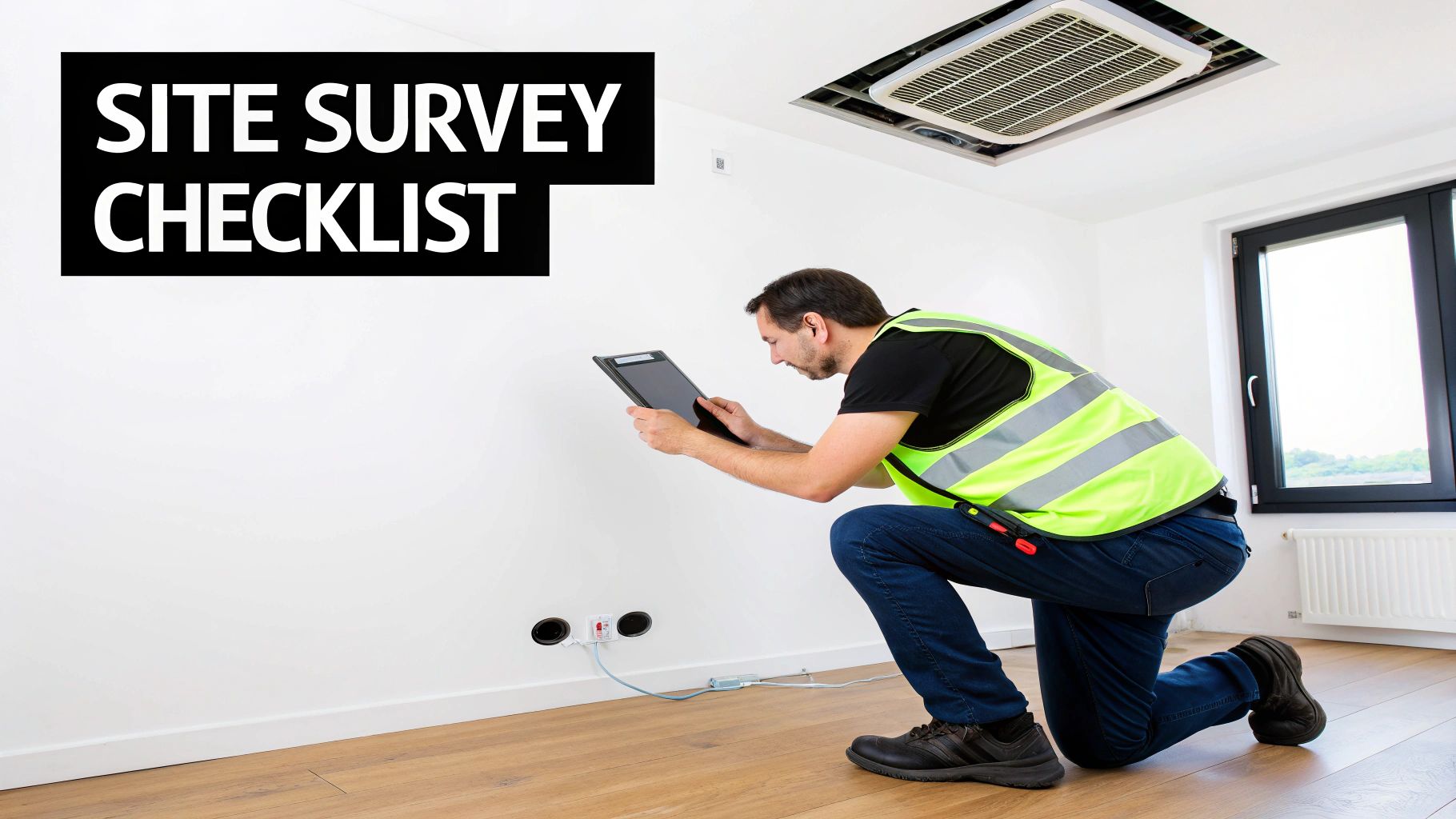
The site survey is your first line of defense against installation disasters. This isn’t just about taking a few measurements; it's a deep-dive investigation of the environment to uncover hidden obstacles that could derail the entire project.
You have to think beyond the obvious. Is that wall actually flat? Are there hidden water pipes, electrical conduits, or HVAC systems lurking behind the drywall? And what about ambient light? A screen that looks incredible in a dark room can be completely washed out by the afternoon glare from a south-facing window. You also have to assess the wall's structural integrity—drywall alone is almost never strong enough to support the weight of a commercial-grade display.
Here’s a pro tip: always check the location at different times of the day. See how the light changes and how it impacts visibility before you commit to a spot. Planning for the worst-case lighting scenario will save you a world of regret later.
Before you even think about looking at hardware, you need to lock down the sign's primary goal. The "why" behind the sign dictates every single decision that follows, from the type of display you choose to the software you'll need to run it.
Is the sign meant to:
The clearer your objective, the easier it is to pick the right tools for the job. You can learn more about how to select the right LED signs for businesses in our detailed guide.
This simple infographic breaks down the core workflow of this crucial planning phase.
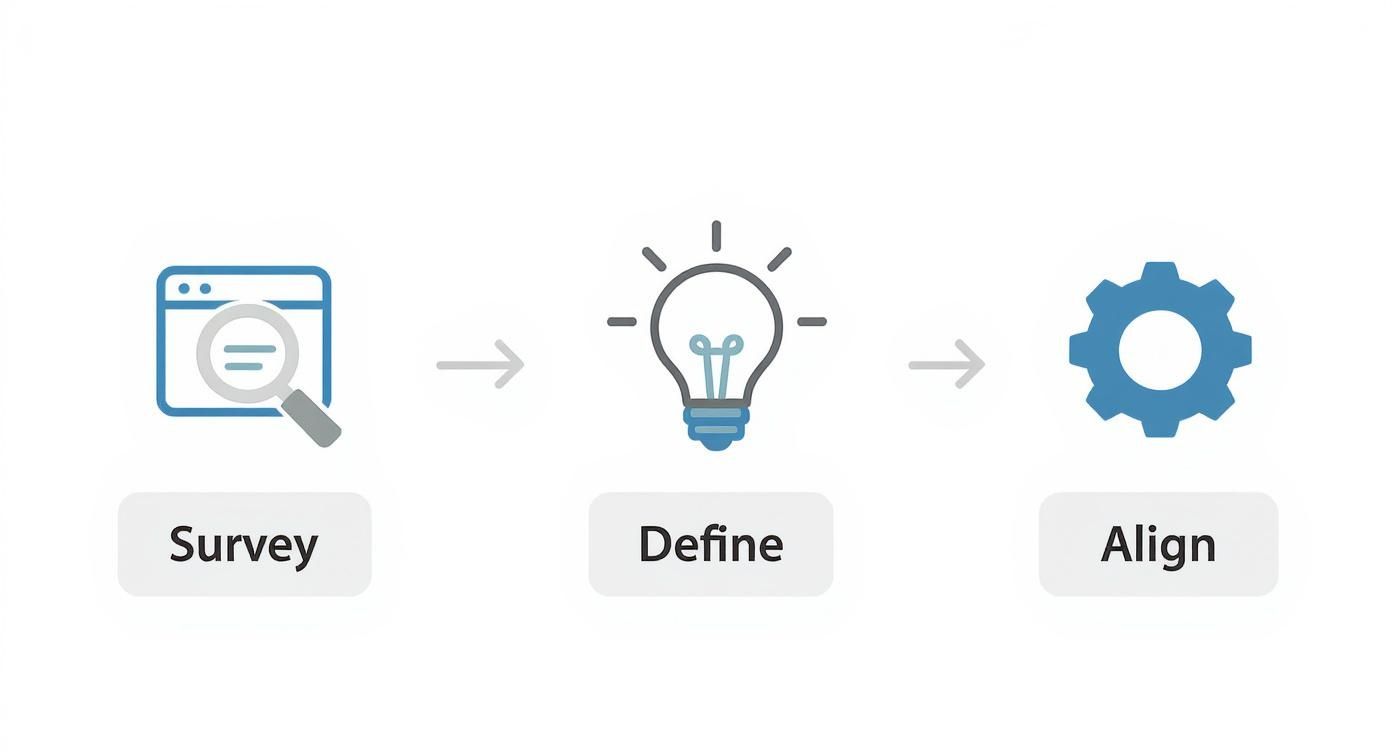
This workflow shows it’s all about a sequence of careful investigation, clear goal-setting, and getting everyone on the same page before any hardware is even ordered.
A digital sign project almost always touches multiple departments, and getting their buy-in early is absolutely critical for a smooth process. Without this internal alignment, a project can stall out fast.
Bringing these teams into the conversation at the very beginning prevents so many last-minute conflicts. You don’t want to find out the IT team vetoed your chosen media player for security reasons after you've already bought it.
To help you stay on track, we’ve put together a quick checklist that covers the essentials for this planning stage.
This checklist is your guide to making sure you've covered all the critical bases before moving forward.
| Checklist Item | Key Considerations | Success Metric |
|---|---|---|
| Site Survey | Wall structure, ambient light (all times of day), power/data access, viewing angles, foot traffic. | A detailed site map with all potential obstacles and opportunities clearly marked. |
| Objective Definition | Primary goal (sales, info, branding), target audience, key performance indicators (KPIs). | A one-page project brief signed off by all stakeholders. |
| Hardware Requirements | Screen size, resolution, brightness (nits), indoor/outdoor rating, media player specs. | Hardware selection directly matches the project's defined objective and budget. |
| Software/CMS Needs | Ease of use, content scheduling, security protocols, multi-user access, reporting features. | The chosen CMS is approved by both IT (for security) and Marketing (for usability). |
| Stakeholder Alignment | Involve IT, Facilities, and Marketing from day one to review plans and requirements. | Documented approval from each department lead before purchasing begins. |
| Permit & Code Research | Check local building, electrical, and zoning codes. Identify any required permits. | A clear understanding of all legal and regulatory requirements for the installation. |
Completing this checklist doesn't just mean you're ready to start—it means you're set up for a smooth, efficient, and successful installation that actually achieves its goals.
With your plan locked in, it’s time to tackle the technical groundwork. This is the behind-the-scenes work that makes sure your digital sign is secure, reliable, and looks professional. Getting the structural and electrical prep right is non-negotiable—skimp on this, and you risk a sagging display or, even worse, a dangerous electrical issue.
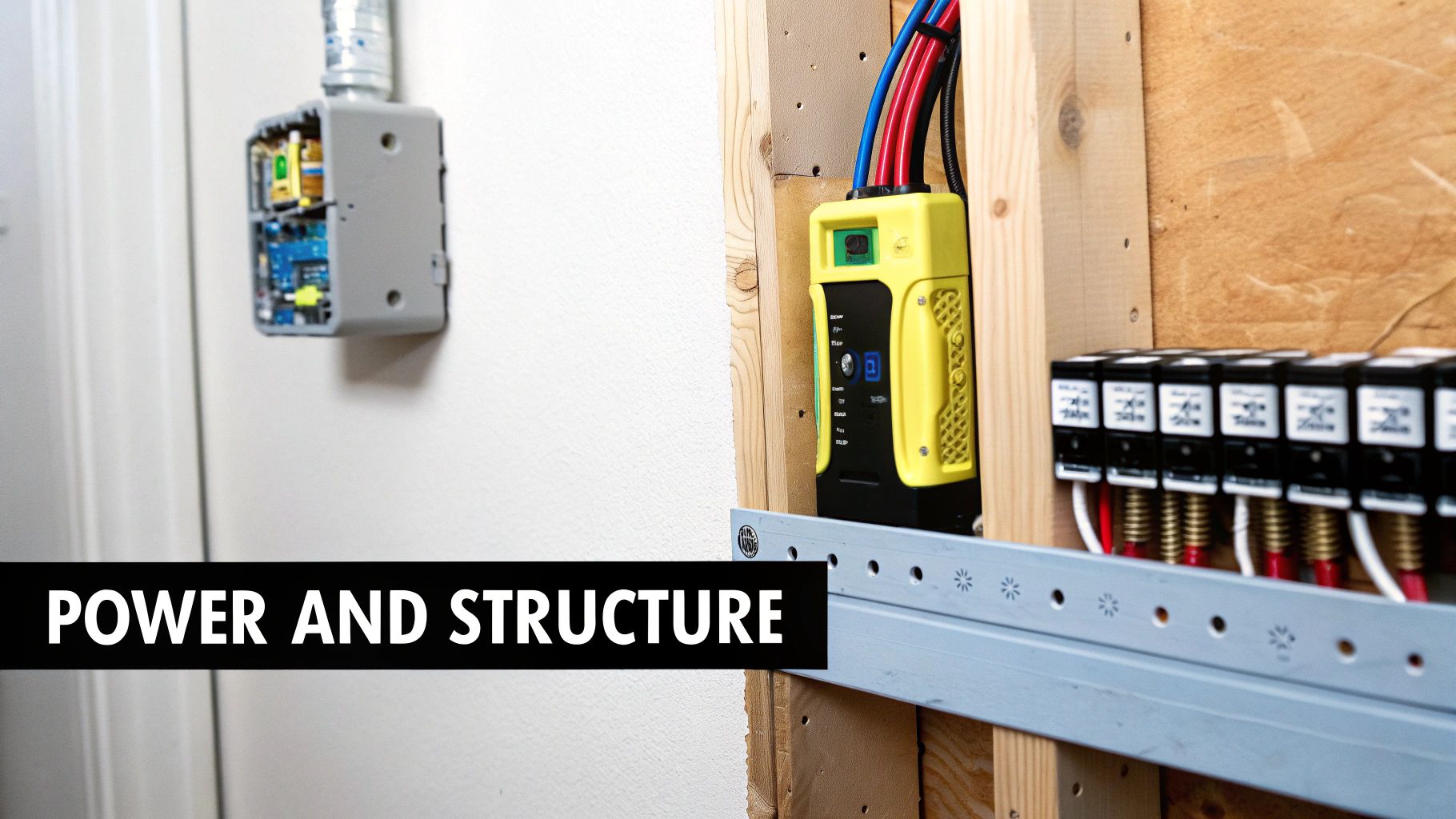
A commercial display isn't like a TV you hang in your living room. These things are heavy. Before you even think about drilling, you have to be certain the wall can handle the combined load of the screen and mount, which can easily top 100-200 pounds or more.
Never just assume a wall is strong enough. Drywall alone will fail, period. You absolutely have to anchor directly into the structural supports.
Grab a high-quality stud finder and locate the wood or metal studs behind the wall. For a standard sign hung landscape-style, you need to securely fasten the mount into at least two studs to spread the weight safely. Mark the center of each one.
Dealing with concrete or brick? That’s a different ballgame. First, you need to check the integrity of the material itself—look for cracks, crumbling, or any signs of weakness. If it’s solid, you'll be using a hammer drill and specialized masonry anchors to create an attachment point that won't budge.
This is not the place for guesswork. A screen pulling off a wall is a massive safety hazard and an expensive mess to fix. If you have any doubt about the wall's strength, call a structural engineer or a professional installer.
The electrical setup is every bit as important as the structural support. I've seen it a hundred times: someone plugs a commercial-grade screen into a circuit shared with a mini-fridge and a microwave, then wonders why the display flickers or randomly shuts down.
That’s why a dedicated circuit is an absolute must for your digital signage. It guarantees the display gets the clean, consistent power it needs to perform well and last for years. You’ll need to add up the total power draw from the display, the media player, and anything else connected to it to figure out the right circuit size—usually a 15 or 20 amp circuit will do the trick.
While you're running the new line, choosing the right types of electrical boxes is a small detail that makes a big difference. For outdoor signs, this means weatherproof enclosures are essential. Making the right choice here keeps all your connections safe, protected, and up to code.
Nothing screams "amateur job" like a mess of tangled cables hanging below a beautiful new display. A professional installation is all about that clean, wireless finish, and that takes some forethought. The idea is to strategically place your power and data ports directly behind where the display will be mounted.
Think through the entire signal path:
You can hide these cables using surface-mounted raceways or, for the cleanest look, run them inside the wall with conduit. It’s not just about aesthetics; this also protects your cables from getting snagged or damaged and makes any future upgrades a breeze.
Running new electrical and data lines does add to the project cost. For a clearer picture of how these foundational elements fit into the overall budget, especially for larger jobs, check out our guide on the typical outdoor LED sign cost.
Alright, the planning phase is behind you. All that careful measuring, site surveying, and permit chasing is about to pay off. Now comes the hands-on part—turning your blueprints into a physical, high-impact digital sign. This is where precision and safety are everything.
First thing's first: you need to choose the right mount. This isn't just about hanging a screen; the mount dictates viewing angles, ease of maintenance, and how clean the final look will be. Your choice here depends entirely on the specific location and goal.
How you mount the display directly affects how people will see your content. Thankfully, there’s a solution for just about every scenario you can imagine.
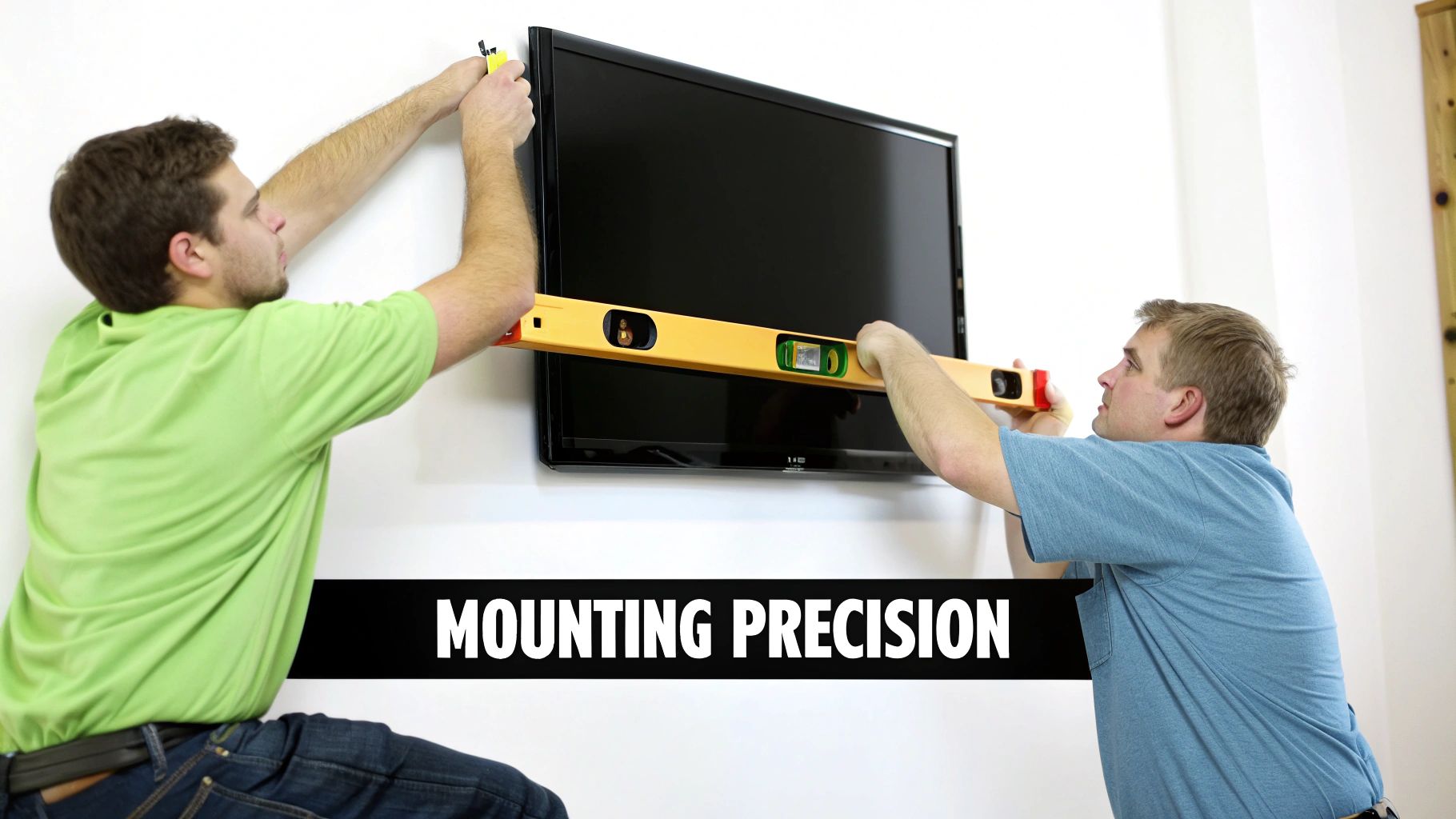
Once you’ve got the right hardware, it’s all about accuracy. A crooked display just screams amateur hour and can kill the credibility of an otherwise professional setup.
Grab a good level and a stud finder to mark your drill points. The old saying "measure twice, drill once" has never been more true. Make sure you’re using the right size drill bit for your fasteners and wall type—trying to force a lag bolt into a pilot hole that’s too small is a great way to crack a stud.
The core principles of leveling and securing a structure are universal. For a different perspective on this process, check out this practical guide to mounting ceiling speakers. While the application is different, the emphasis on structural integrity is the same.
Crucial Safety Tip: This is a two-person job. Period. Commercial displays are heavy and awkward. Trying to lift and hang one yourself is asking for a dropped screen, a busted wall, or a trip to the emergency room. Don't risk it.
With the bracket firmly and levelly attached to the wall, it's time to lift the display. Carefully guide it onto the mount and listen for the clicks of the locking mechanisms. Give it a gentle pull to confirm it's secure before you even think about letting go.
The last piece of the physical install is finding a home for the other components—your media player, network switch, and power supplies. You want them hidden for a clean look but accessible enough for future maintenance.
Many modern mounts are designed with a little extra space behind the screen for a small media player, which is usually the best spot. It keeps cables short and tidy. But you have to think about heat.
For bigger jobs, especially involving https://smartledinc.com/digital-outdoor-signage/, all this gear usually lives in a separate, weather-proof enclosure. No matter the scale, putting some thought into where you place these components will pay off big time in reliability and serviceability down the road.
The screen is securely on the wall and the cables are neatly tucked away. Now, it's time to breathe life into the hardware. This is the final technical hurdle, where we make the connections and set up the software that turns a static display into a dynamic communication tool.
This process breaks down into a few key parts: getting the media player connected, establishing a solid network link, and configuring the brains of the operation—the Content Management System (CMS). Getting each step right is what ensures your content shows up flawlessly, every single time.
One of the first calls you'll have to make is how your media player gets online. You've really only got two options, and each has its own set of pros and cons depending on your space.
A hardwired Ethernet connection is almost always the best bet for any permanent digital sign installation. Period. It gives you a stable, high-speed connection that isn’t at the mercy of the interference that can plague wireless networks. If you're planning on streaming high-res 4K video or displaying mission-critical data, the stability of a wired connection is something you just can't compromise on.
Wi-Fi offers fantastic flexibility, especially in older buildings or locations where running a new Ethernet cable is a huge pain or just too expensive. But it comes with risks. Wi-Fi signals get weakened by walls, thrown off by interference from other electronics, or bogged down by network congestion. Any of these can lead to stuttering playback or, worse, a completely offline display.
A pro tip from the trenches: Even if you plan to use Wi-Fi, run an Ethernet cable during the initial installation if you can. Think of it as a cheap insurance policy. It gives you a reliable backup if the wireless connection proves flaky down the road, and trust me, it can save you a massive headache later on.
Once you've decided on your network, it's time to physically hook everything up. This part is usually pretty straightforward.
With all the cables in place, power on the display first, then the media player. You should see the media player’s startup sequence pop up on the screen. This is your first visual confirmation that all your physical connections are good to go.
The Content Management System (CMS) is the software hub where you'll upload, schedule, and manage everything that appears on your screen. The setup process varies a bit depending on whether your CMS is cloud-based or hosted on-premise, but the core steps are pretty much the same.
Your first job is to "pair" the media player to your CMS account. This usually means typing a unique activation code from the screen into your CMS web portal. Once they're linked, you can start the initial configuration.
Key setup tasks usually include:
A well-configured CMS is the only way to unlock the real power of your digital signage. After all, what good is a sign if you can't control it? Well-managed digital signage has been shown to boost brand awareness by a staggering 47.7%, and that kind of result depends entirely on having a smooth, efficient content delivery system.
The final step is to prove the whole system works end-to-end. Let's walk through a classic scenario: scheduling a simple welcome message for a corporate lobby.
Within a few moments, that welcome message should appear on your screen. This simple test confirms everything: your network is stable, the media player is talking to the CMS, and the display is rendering content perfectly. Your digital sign installation is now officially up and running, ready for whatever content strategy you can dream up.
So, the screen is on and content is rolling. Great job. But hold on—the project isn't over just yet. The last, and arguably one of the most crucial, phases is all about verification and future-proofing your work. This is where you double-check that every single component is playing nice together and set up a solid plan to keep it that way.
A proactive approach here is what separates a flashy new toy from a long-term business asset. It's how you guarantee your sign remains a reliable, high-performing tool that keeps delivering on its promise for years.
Before you officially call it a day and sign off, you need to run through a thorough commissioning process. Think of it as a final quality control sweep—a systematic check of every piece of hardware and software to catch any gremlins before they have a chance to mess with your audience's experience.
Your checklist shouldn't be a quick glance. It needs to be detailed, covering every potential point of failure. We're not just making sure the screen turns on; we're verifying the little details that make for a professional, seamless display.
Here’s what a proper test run should cover:
Commissioning is your last chance to fix problems the easy way. Finding a weak Wi-Fi signal now is a simple adjustment. Discovering it a week later when your biggest ad campaign fails to launch is a full-blown crisis.
This rigorous testing process doesn't just wrap up the installation; it sets the stage for reliable, worry-free operation down the road.
Once your system is commissioned and humming along, the focus shifts to its long-term health. A proactive maintenance plan is your best defense against unexpected downtime and those dreaded emergency repair bills. It’s really just a simple schedule of routine tasks that keeps your investment in peak condition.
There's a reason digital signs are popping up everywhere, especially in retail. The global retail digital signage market was recently valued at USD 6.4 billion and is expected to explode to USD 21.2 billion in the next decade. To get a piece of that action and see a real return, a maintenance plan isn't optional. You can dig deeper into these trends in this insightful market analysis.
A simple, effective schedule can be broken down into weekly, monthly, and quarterly tasks.
| Frequency | Task | Key Action |
|---|---|---|
| Weekly | Remote System Check | Log into your CMS to confirm the display is online and playing the right content. Glance over any system health alerts. |
| Monthly | Physical Inspection | Gently wipe the screen with a soft, microfiber cloth. Check that all cables are snug and inspect ventilation ports for dust buildup. |
| Quarterly | Software and Firmware Updates | Check for and install any updates for your CMS and media player firmware. These often include critical security patches and new features. |
This schedule acts as an early warning system. By regularly checking connections and clearing out dust, you can head off common culprits of failure like signal loss and overheating before they cause real damage. Sticking to a simple routine like this is the single most effective thing you can do to protect your digital sign and maximize its lifespan.
Even with the best-laid plans, questions are going to pop up during a digital sign installation. It's just part of the process. Getting ahead of these common questions can save you a ton of time, help you dodge costly mistakes, and give you the confidence to steer the project in the right direction.
Let's break down some of the most frequent questions we hear on the job.
Nine times out of ten, the biggest screw-ups in a digital sign installation happen long before anyone picks up a drill. They almost always trace back to poor planning.
A botched site survey is the classic culprit. Maybe someone installs a beautiful screen without realizing the afternoon sun is going to blast it with so much glare it becomes unreadable. Or, even worse, they fail to confirm the wall can actually support the display's weight.
Speaking of weight, underestimating the support needed is another huge one. This can lead to a display that slowly sags over time or, in a nightmare scenario, pulls clean off the wall. We also see people putting indoor-rated screens in bright lobbies or semi-covered outdoor areas, only to find they're completely washed out and unviewable. And finally, nothing screams "amateur hour" like a mess of tangled cables, except maybe relying on a shaky Wi-Fi connection for 4K content—that's just asking for playback headaches.
The classic "DIY vs. Pro" debate really boils down to two things: complexity and risk.
If you’re just mounting a single, lightweight screen on a standard drywall wall and you’ve done this kind of thing before, you could probably handle it yourself and save some money.
But for almost any commercial project, the answer is crystal clear: hire a professional. This is a non-negotiable for large displays, multi-screen video walls, any kind of outdoor setup, or installations on tricky surfaces like brick or concrete. Pros carry liability insurance, which is your safety net against accidental damage. They have the specialized tools, they know the local building and electrical codes inside and out, and they have the experience to troubleshoot the unexpected problems that always seem to crop up.
The cost of bringing in a certified expert almost always outweighs the massive financial and safety risks of a botched DIY job. A pro gets it done right, safely, and efficiently the first time.
The cost for a professional installation can be all over the map, depending entirely on the scope of your project. A basic, single-screen install on a simple interior wall might only run you a few hundred dollars. But several factors can make that price climb quickly.
Complexity is the biggest driver. Here are the main variables that affect the final price tag:
For a more involved project, like a multi-screen video wall, you could easily be looking at installation fees in the several thousands. Your best bet is to always get detailed, itemized quotes from at least two or three certified installers to compare what you’re getting for your money.
Digital signs aren't a "set it and forget it" kind of technology. They need a little routine care to keep them running smoothly for years to come. Think of it in two buckets: physical upkeep and software management.
On the physical side, you'll want to gently clean the screens with a microfiber cloth every so often to get rid of dust and smudges. It's also smart to periodically check that all your cable connections are snug and that the display's ventilation ports aren't blocked—that's a super common cause of overheating.
For the software, keeping everything updated is key. This means regularly checking for and installing firmware updates for your media player and any updates for your Content Management System (CMS). These updates usually have important security patches, bug fixes, and new features that keep things running well. Finally, get in the habit of remotely checking in on your content playback to make sure everything is running as it should, and keep an eye on the system's health dashboard if your software has one.
At Smart LED Inc., we do more than just provide state-of-the-art displays; we bring the expertise to make sure your installation is a home run from day one. Explore our factory-direct outdoor LED signs and indoor video walls today.
Picture this: you take the flash and spectacle of a Times Square billboard, slap it on the back of a truck, and send it wherever
A wall of TV screens is exactly what it sounds like: a big, impressive display made by tiling multiple TVs together so they act like

Picking the right displays for shows can feel like a high-stakes guessing game. Get it right, and you create an immersive world that captivates your
"*" indicates required fields